Showing posts with label #tools. Show all posts

Tuesday, November 1, 2022

New Screencast app for Chromebook

Google for Education recently announced some new features for Chromebooks, Google Classroom, and Google Meet, including a screencasting app for Chromebooks.

Screencast App

With the new Screencast App, both teachers and students will now be able to easily create videos. The new Screencast App will be built into Chrome OS. According the Google, the screencast feature is available now for users whose Chromebooks are running the latest update.

Uses for Screencasting

There are so many ways the Screencast App can be used. For teachers, the Screencast app will allow you to record instructional videos or live classes. This will allow teachers to build a video library of lessons and demos. Students can then watch the videos if they miss class or need extra help with the lesson topic. In addition, students can also use Screencast! For example, they can record presentations or videos that show understanding of concepts taught. In fact, there are many uses for screencasting for both teachers and students.  

Features

Some features of the Screencast App include the ability to trim your video. In addition, the speaker’s face and voice can be recorded along with the content on the screen. Furthermore, a marker tool will allow users to write, draw, or point to and highlight different parts of their screen while recording.

Transcription and Translation

The screencasts will have built-in transcription and translation. Each recording will automatically be transcribed once it is completed. When the recording is viewed, the transcript will appear to the right of the video. When watching the video, students can search the transcript for keywords or click on sections of the transcript to view that particular section of the video. The transcript can also be translated into different languages. This will be great for second language learning in the classroom.

Saving and Sharing Recordings

The recordings will automatically be saved to Google Drive. A unique video link will be generated once the user clicks on the Share button. This link can then be shared with those with whom you want to watch the video.

Article: TCEA Blog
Monday, June 20, 2022

Webtools: No Registration Needed for Students

List of webtools that don’t require student registration

Please be aware that websites do change and some of these sites may no longer be active or may have switched to a paid version. Also, some of these sites rely on advertisements and so be careful when using with younger students. To make it on this list, a site must be:

  1. Free. There may be paid versions, but there is an option to use without paying.
  2. Without the need for students to give their email address. Teachers may have to register, but there is an option for students to either sign-in or use without giving their own email address or log-in with their Facebook/Google/Twitter/etc. account. (Some sites may need an email address, but can be used with a completely fake email address since the site doesn’t require you to verify your email address)
  3. For the most part, interactive or creative. The ideal tool allows the student to express themselves through creation, but some of these tools are for teachers only.
  4. Completely online. There should be no need to install something to make it work. Some of these sites require things like Flash or Java which are on most desktop and laptop computers, but are normally not accessible on a tablet or phone.

From: Nathan Hall

River Runner

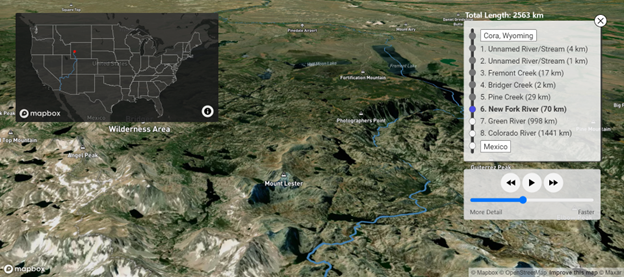
River Runner – The premise of this website is simple: Drop a raindrop anywhere in the contiguous United States and see where it ends up. Once you’ve released your drop, the site automatically creates a map and takes you on a visual journey as it travels. It identifies each river it runs into, as well as how far along that body of water it would travel. You can zoom in for more detail on the map, too. I randomly put my drop in Cora, Wyoming and saw that it would travel 2,563 kilometers to Mexico (not where I would have predicted). There is also a global version of the site available.

From TCEA Blog (Texas Computer Education Association)

Monday, May 23, 2022

Infusing Critical Thinking with Flipgrid and Jamboard


Watch this quick TikTok from EdTech Guru Holly Clark as she describes a simple way to mashup Flipgrid with Jamboard to engage in critical thinking. 
TechTip: You can watch directly in your browser without having an TikTok account.

Download The Outsiders Example HERE

Friday, May 6, 2022

SlidesMania – Way More than Presentations

 A post from Nick's Picks for Educational Technology:

SlidesMania – Way More than Presentations

While there are several slides template sites, SlidesMania is hands-down the best one for teachers and students. They’ve embraced the idea that there’s a lot more to Google Slides than presentations.

They also have a Templates for Educators by Educators page that’s definitely worth a look.

Google Slides Templates for Teachers

Tuesday, April 26, 2022

Create Online Books With Page Turning Effects

 This post was created from Practical Ed Tech - Richard Byrne


Here are some ideas for creating an online book that could be displayed with page turning effects. Adding some page turning effects is a nice touch online publications like students’ creative writing and or picture books.

Here are the three tools recommended for creating online books that have page turning effects.

Canva + Heyzine

Canva has thousands of templates for creating all kinds of books, yearbooks, slideshows, and more. Canva also has an integration with Heyzine that you can use to add page turning effects to any multiple page design that you’ve created in Canva.

You can use Heyzine without using Canva. Heyzine will work with any PDF that students have created.

WriteReader

WriteReader is an online writing and publishing tool built for elementary schools. Completed books are displayed with page turning effects. But that’s not the best part of WriteReader. The best part is found in how you give feedback to your students. Students write their stories on the digital pages in WriteReader and you provide feedback and correction directly below what they’ve written. It’s much like the old three-lined handwriting paper that you might have used as a child or perhaps as a teacher. Watch this video to learn more about how WriteReader works.

* WriteReader is a Freemium subscription which means you have access to a basic subscription for free but can pay for additional features. 

Book Creator

Book Creator is a tool recommended for creating multimedia books. Depending on the template used, the finished product can be displayed with page turning effects. This is particularly nice when students have included audio in the book and include a little “turn the page” prompt. Here’s an overview of how to use Book Creator and here’s a video highlighting two favorite features of Book Creator.

* Book Creator is a Freemium subscription which means you have access to a basic subscription for free but can pay for additional features. 

Tuesday, April 19, 2022

Woot Math


Woot Math is an adaptive online curriculum that focuses on fractions, ratios, and decimals for students in grades 3–7. 

It includes narrated tutorials and targeted practice. Students access a progression of adaptive lessons through units organized by topic and presented as notebooks, and they view their progress through units. 

At the end of the lesson, a student earns 1-3 stars depending on quantity correct, and the next lesson is unlocked. The site's adaptiveness makes it so that the "next" lesson may or may not be sequentially next -- sometimes it's a review of content that needs some extra attention, and sometimes it skips ahead to a more complex concept.

Wednesday, April 13, 2022

Google Arts and Culture TEACHER GUIDE


Google Arts and Culture has revamped its website over the past few years and it now houses a plethora of information, lesson plans, activities, and fun!  Google also recently created this Google Arts and Culture Teacher Guide to help teachers navigate the website, learn about the content provided on the website, and provide step-by-step instructions on how to best integrate Google Arts and Culture into your classroom.  Find interactive lessons and experiential learning activities that can be utilized in all content areas that range from breathing exercises taught by an opera star to a comic about the science behind superheros.  Open the guide and you'll be sure to find something related to your content area that will captivate your students and enrich their learning!

Wednesday, March 30, 2022

1400 Jamboard Templates!


 TCEA (Texas Computer Education Association) has graciously compiled over 1400 Jamboard templates on this Jamboard Templates Collection Google Doc and distributed the collection FREE for teachers to access!  The templates are categorized by content area, and then further by topic withing content area.  Use Google Docs "Outline" feature to easily navigate the topics (click on the View menu and choose Show Document Outline or simply click on the Outline icon on the left side of the Google Doc screen).

Thursday, March 17, 2022

Level-up Your Teaching with Kami as a Digital Whiteboard

Did you know you can use Kami as a digital whiteboard that you can collaboratively share with your class?  

Well, you can and here is just some of what you can do:


This video from Oliver R. Tingling, a math teacher who started Sharks Online School, has some great ideas for using Kami as a Digital Whiteboard tool in a math classroom, but his ideas can be applied to any content area or grade level.  Even kindergarten can use his ideas with the use of Kami's audio and video tools. 

The video is 18:14 minutes long but I recommend FFing to either 5:50 or 9:45 to get the 'meat' of the content.  


PRO TIP:
Remember you can watch any YouTube video at 2X's the speed by clicking on the gear icon in and changing the playback speed.

Wednesday, March 16, 2022

Kami's New Library of Instructional Templates

Kami recently unveiled the all new Kami Library, which contains hundreds of customizable templates that you can use at your will!  You can filter by grade level, content area, and resource type (graphic organizer, brain break, classroom management, etc). Watch this video to learn more!


Monday, January 6, 2020

Teacher Spotlight: Look At What a First Grader Can Do with Andrea Emmer

This month our Teacher Spotlight shines on Andrea Emmer, a first grade teacher at Brush Creek Elementary. When asked how Andrea can get first graders to do so much with technology, she replies, “Remember, first graders are risk-takers and you need to swim with them.”  Andrea has been swimming with first graders using chromebooks in her classroom for 3 years now. The three most powerful areas of technology that have enhanced her teaching are: keeping the learning fresh and new, promoting independence, and encouraging teamwork among her first grade students.


Andrea loves how technology can keep learning fresh.  Just when students have settled in and become familiar with one tool, she introduces another. “This way, students are always kept on their toes.” This keeps students engaged. One of her favorite tools is Quizlet Live.  Andrea says she loves to use Quizlet Live to review skills such as number identification, vowel sounds, and comprehension questions.  Her first graders easily access Quizlet Live by clicking on a hyperlink posted in Schoology.


Andrea delights in how technology has helped students to become more independent. Independence is promoted by using the the ScreenCastify extension. Andrea says she posts videos of herself describing to students how to use the different learning centers she has set up around her classroom.  This eliminates the need for her to reexplain how each center is to be used.

One way collaboration is done is thru Google Keep.  Students recently did a research project on spiders where all of their highlighted content from a website was automatically saved to a Google Keep note.  Once the independent research was finished, Andrea created groups where students shared their Keep notes with other members of their group. They were then able to see what information they had in common and what unique information someone had found to add to their own report.


When asked what is the best piece of advice Andrea can offer to a primary teacher - or any teacher for that matter - who wants to use more tech in their class, she first says it is all about balance.  Andrea still utilizes traditional methods of learning: pencil and paper, cutting and making, talking and moving. But she stresses when using tech with first graders to “breathe deep, know that booboos will happen, and take the time to let the students learn how to use the tools/device.” And just keep swimming…

Thursday, December 5, 2019

Flipgrid's New Camera Features

Flipgrid is a simple, engaging way to include more student voice into your lessons.  Previously, students only had the option to record a short segment of themselves for their response.  But now... have you checked out the new features on Flipgrid's camera?!  They open up a whole new world of opportunities for your students!  


Some ideas of how to use these features:

  • Response Reminders: Students can brainstorm ideas that they would like to cover in their response and can jot down the ideas on sticky notes.  These will act as reminders during recording.
  • Show Your Work: Students can transition between a whiteboard and themselves during recording to show their work in solving a problem.
  • Explain an Image: Students can upload an image of their work (or anything else!) and talk about it while it appears on the screen.  They can even point to different sections of the image while recording, like a weatherperson using a green screen!
  • Book Talks: Students can use a combination of the features to give a short review/response about a book they are currently reading or a specific quotes from that book (example: upload a snapshot of a page and then use the drawing tool to annotate the text as you talk).  

Share how you're using Flipgrid in your classroom by leaving a comment on this post!  We love hearing about your ideas!


Tuesday, November 19, 2019

Teacher Spotlight: Individualized Learning for Every Student with Jen Laackman


Some teachers make differentiation and individualization for their students look so easy.  Do these teachers have a superhuman knack for it? Do they stay at school until midnight every day to get it done?  Or do they have something else up their sleeves… 

Let us introduce you to Jen Laackman, who is an 8th grade Social Studies teacher at HPS, and while she quite possibly may have superhuman powers, she has also learned how to harness technology to support the varied learners in her classroom.  Jen is well-versed in numerous edtech tools, but we’re going to focus on a few that allow her to differentiate her lessons to meet the needs of all her learners:
HyperDocs, EdPuzzle, and Schoology Completion Rules.


Jen started integrating HyperDocs into her lessons last year, and has found that they provide individualization for choice and creative expression in student learning.  HyperDocs allow teachers to offer a variety of resources as well as opportunities to share learning in unique ways that all HYPERlink back to an original DOCument (see where the name originates??) for each student.  Jen prefers using Google Slides to create her HyperDocs, but teachers also use Google Docs, Sheets, and Drawings to create these. There are several samples available online and even a HyperDoc website, created by the founders of HyperDocs, which contain several possible templates.  Jen creates separate HyperDocs for specific groups of students or creates one HyperDoc for all students with options of different resources to choose from and various methods to show learning. Both of these methods allow for differentiation and/or individualization.


Videos are a common resource on Jen’s HyperDocs, and EdPuzzle allows her to not only integrate videos into her lessons, but to also track student learning from videos by setting up formative questions throughout the video.  From her teacher dashboard on EdPuzzle, Jen sees not only student responses to questions, but also how long it took each student to finish the video and how many times a student watched a particular segment.  In addition, this process allows students to work at their own pace until they have mastered the content.


While HyperDocs and EdPuzzle are both tools that allow for differentiation in Jen’s classroom, she claims that Schoology’s Completion Rules feature ties everything together.  Schoology is a staple in Jen’s classroom as she uses it to post assignments, resources, assessments, and more.  Schoology’s Completion Rules feature allows her to do all these things while ALSO individualizing her lessons. This feature allows her to set up “modules” that require students to complete one task before moving on to the next, allowing students to work at their own pace to complete the tasks.  In setting this up, she has the option to require students to open links, post discussion responses, submit assignments, score above a certain grade on an assignment, and/or score above a certain grade on an assessment in order to move on to the next task. The platform keeps track of each student’s progress in the module, and Jen uses this data to know exactly how and when to check in with each student.  In addition, Schoology allows teachers to individually assign folders (containing specific materials) to specific students, which is another option to further differentiate. These folders only appear on the Schoology page of the specific assigned student(s). Now, Jen has the ability to push out the HyperDocs she creates specifically for target groups of students without anyone being the wiser. What a great way to ensure that each student is receiving appropriate resources and support to meet their individual needs!

For further information on any of the tools or resources mentioned, please reach out to the EdTech team to set up a training or co-planning session!  In addition, please refer to these additional resources:


Extra Tidbit… Did you know that EdPuzzle integrates with Schoology AND that the grades from your EdPuzzle gradebook will sync to the Schoology gradebook??  Find out how to set this up HERE and/or contact the EdTech team for support!


Monday, October 23, 2017

So what exactly are Chrome Extensions?!?!


Think of Google Chrome extensions as adding a Swiss Army knife to your Chrome Browser.  Clip a web page to Evernote with a single button push. Cite a reference using CiteThisForMe and model for students how to add a citation. Save your favorite websites or capture what´s on your mind with Google Keep. Find a post you want to read? Don’t email it to yourself–use Pocket.  Find out the 50 of the best Google Chrome Extensions for teachers by clicking here.

#ECSEdTech